The Current status view can be accessed in Worktime > Work hours > Current status.
Starting an event
Event entry view in the Current Status view:
To start recording, activate the desired event type. Press the Start button, and the event will start at the current time and will be active without an end time until it is stopped.
If you want to start another event, simply activate the desired event type and press the Start button. You don't need to stop the previous event, it will end automatically when a new one is started.
There must be at least 1 minute between events recorded in real time so that they are considered separate events.
Adding project targeting
You can also target events for projects in the Current status view. Select the desired event type, for example Work. The event type is activated. Select Projects. Select the desired project from the menu, then start the event using the Start button. If a default project has been set for the person, it will always be offered as the default for events. You can change the project for each event in the Projects menu.
When an event is started, the service will notify you of its successful start, including project targets:
Changing an event's overtime target
The overtime target for an event can be changed when the event is ended. When the event is active, the Overtime heading appears in the right-hand menu. Clicking this will open the overtime target options for that event. You can select the desired one from these, and then end the event with the Stop button.
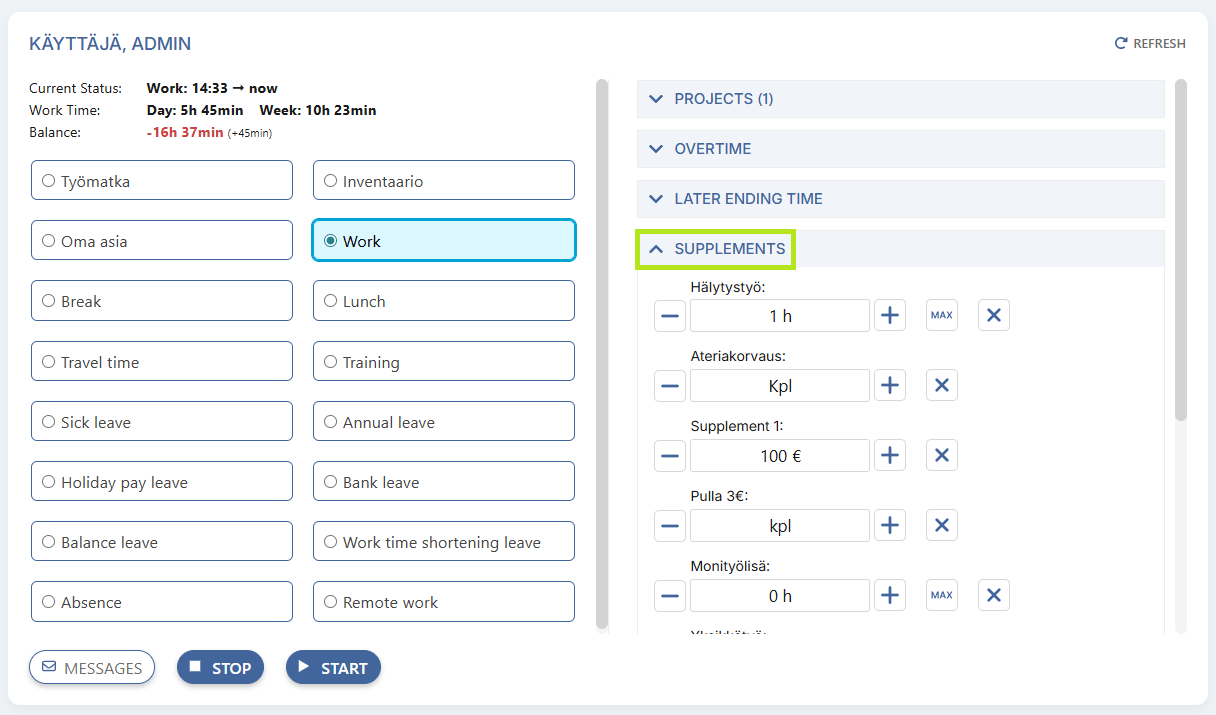
Adding supplement to an event
Supplements can be added to an event when the event is ended. When the event is active, the Supplements heading appears in the right-hand menu. Supplements can only be added to an event in the current state if its unit is time (duration in days or minutes) or an integer. If a default value has been given for the supplement, this value is pre-selected for the supplement that is automatically added to the event. Set the desired value using the - and + signs, and use the X button to reset the field.
Ending an event
To end an active event, open the current status view and press the End button. If you want to change the event type during the day, simply activate the desired event type and press the Start button, which will automatically end the previous running event. This means you don't need to end the event in between.
Starting an event with an earlier start time / ending with a later end time
In the settings, the possibility to start the event with an earlier start time, and correspondingly end the event with a later end time can be activated. If this function is enabled, the Earlier Start Time option will appear in the right side panel before the event has been started. This allows you to set the start time to a time earlier than the current time. When the event is started, the event will start at this specified time instead of the current time.
Similarly, when an event is running and is stopped, the option "Later end time" appears in the right-hand menu. Here, you can specify a desired end time for the event in advance, which is later than the current time. When the event is stopped, the end time is not registered as the current time, but as the end time specified in the setting.