Admin users can edit Login settings in Employees > Administration > Settings: Login. This article describes what the settings mean. Note that settings for worktime calculations and management can be found here.
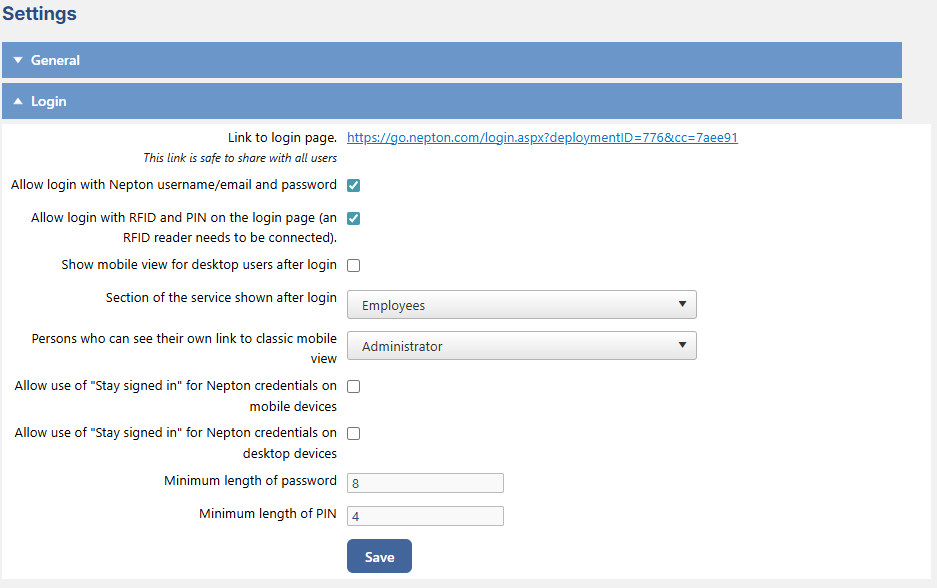
Link to login page: Every Nepton deployment has its own unique link, which can be used to log in directly to your community. (This link is safe to share with all users)
Allow login with Nepton username/email and password: Article about this setting can be found here.
Allow login with RFID and PIN on the login page (an RFID reader needs to be connected): When active, this setting allows users to login through login page by two-phase RFID/PIN code method.
Show mobile view for desktop users after login: Can be set that when logging in, system opens in the mobile view by default, also when using desktop.
Section of the service shown after login. If "Worktime" is selected, the person will be directed upon login to the view (Events in table/Events in calendar) that they last viewed.
Allow use of "Stay signed in" for Nepton credentials on mobile devices: Ables to login on mobile devices without giving username and password again. Note! If this is in use, but the next setting is not, this info box will appear when using desktop.
Allow use of "Stay signed in" for Nepton credentials on desktop devices: Ables to login on desktop without giving username and password again.
Minimum length of password: As a default, minimun length of password is 8 characters. Password can include numbers and special characters.
Minimum length of PIN:
pin number/pin code can be used when logging in on terminal or using old mobile link. As a default minimum length is 4 characters.